

Event organisation — "do I have every item I'll need?"
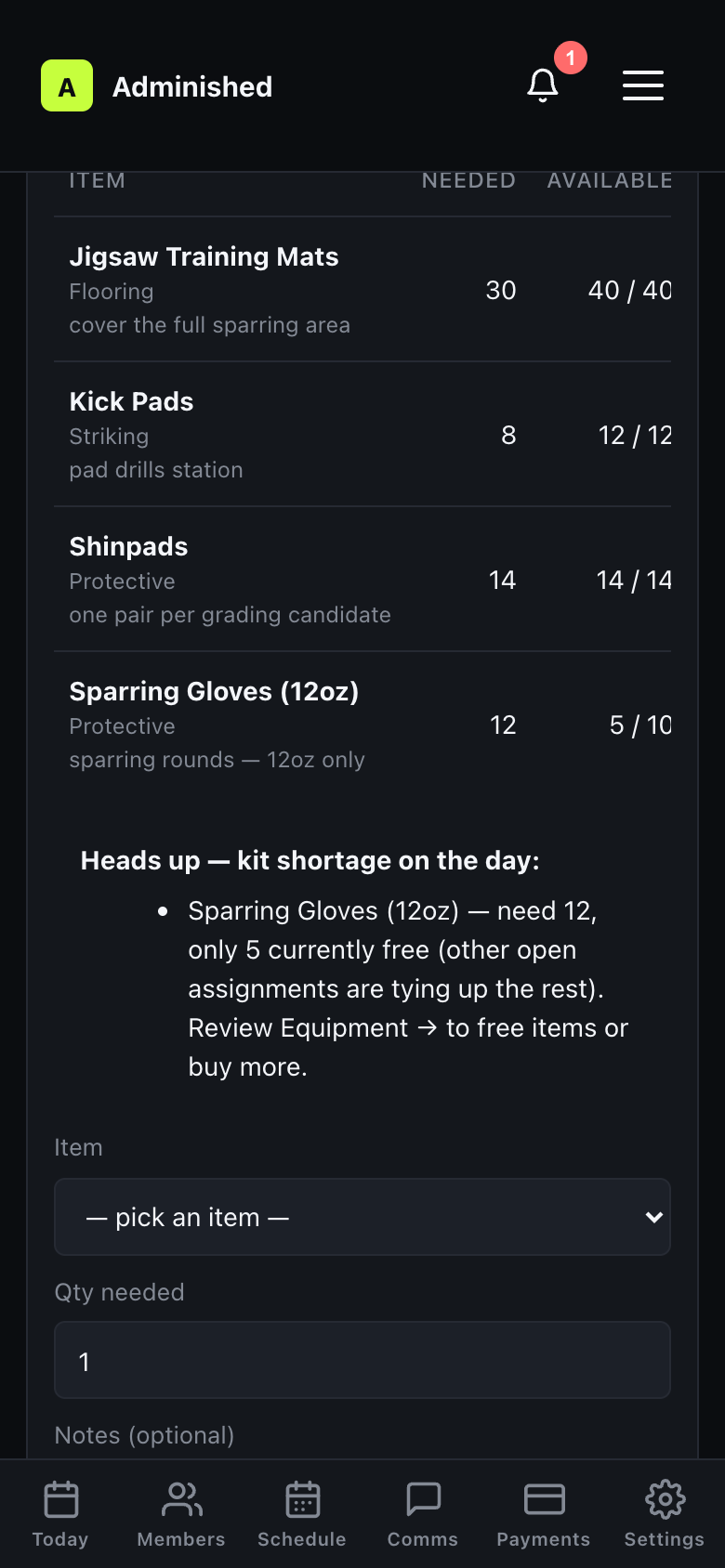
If you've ever turned up to a camp and realised you're 3 mats short, this is for you. Adminished lets you list the kit required for an event and warns you on the day if your inventory can't cover it — because something else is checked out elsewhere.
Adding required kit to an event
- Open the event from Events.
- Scroll to the Required equipment card.
- Pick an item from the dropdown (it lists every active piece of kit in your inventory plus how many you have in total).
- Enter the quantity you'll need. Add optional notes ("red mats only", "the new ones, not the foam ones").
- Click Add to kit list.
Repeat for each item. Adding the same item twice updates the quantity instead of creating a duplicate row.
What the availability check is actually doing
For every line in your kit list, Adminished compares two numbers:
- Needed — what you entered as the required quantity.
- Available — your total stock minus anything currently checked out somewhere else (a room, another event, a coach's car). Open assignments tied to this event don't count against you — they're already covering the requirement, not competing with it.
- Per-day availability (multi-day events). When you pin both a requirement and a competing assignment to a specific day, Adminished only counts that assignment against the days it actually overlaps — so two camps that share kit but run on different dates no longer trip a false shortage. An assignment left as Whole event (no day picked) is treated conservatively: it counts against every day, exactly as before. So the netting only ever tightens when you tell it which days the kit is out.
If Available ≥ Needed, the row shows a green OK pill. Otherwise it shows a red N short pill telling you exactly how many you're missing.
What "currently checked out elsewhere" means
Adminished tracks every kit assignment with a returned-on date. An assignment is "open" until you mark it returned. Examples that would tie up stock:
- 10 mats assigned to Main Hall for weekly training and not yet returned.
- 4 cones assigned to another event happening the day before yours.
- 2 vaulting boxes loaned to a coach for a workshop and never logged back in.
To free items up, open Equipment, find the assignment, and click Mark returned. The kit list on your event detail will update on the next page load.
Pin an assignment to a day. When you assign kit to a multi-day event, a Which day? dropdown appears. Leave it on Whole event and the kit counts as out for the whole run (the safe default). Pick a date and the kit only counts against the days it overlaps — so kit out at one camp on Monday won't be flagged against another camp's Tuesday.
The summary pill at the top of the card
At a glance:
- All kit available (green) — every required line has enough stock free on the day. You're good to go.
- Shortage on N items (orange) — at least one line is short. The card body shows a yellow callout with each item and how many you're missing, plus a deep-link to the Equipment page so you can free items or order more.
Common workflows
Planning a new event from scratch
Create the event, add dates, then drop in your kit list early. You'll see the shortage warning weeks before the event, giving you time to buy or borrow. Adminished doesn't auto-buy or auto-reserve — the check is informational, not blocking.
Recurring camps
Holiday camps usually use the same kit every time. Copy a previous event (top-right Duplicate button) and the kit list comes with it. Adjust quantities for the size of the new cohort.
Multi-day camps
If your event has more than one date, the kit list works on two levels. The quantity you enter against Every day (default) applies to every date of the event. If one day needs a different amount — 50 children on Monday but only 30 on Tuesday — pick that date from the Applies to dropdown and enter a per-day quantity. The per-day override wins for its day; every other day falls back to the default. The card lists each line's day (or "Every day") and, when stock is tight, flags exactly which dates fall short.
Removing a requirement
Click Remove next to any line. The requirement is deleted — the underlying equipment item is untouched.
Limitations (today)
- Availability is netted per day only when you pin the dates. If you assign kit to a specific day of a multi-day event (the Which day? picker on the Equipment page) and set a per-day requirement, the check only counts that kit against the days that overlap — so a mat out at another camp next Saturday won't show as "checked out" for your Monday session. Anything left as Whole event (or any room/general assignment) still counts against every day, which is the safe over-warn default. So a dateless assignment can still produce a shortage warning that resolves itself by the event date — pin it to a day to net it precisely.
- No auto-reserve. Adminished doesn't automatically create an assignment when you list a requirement. Add a manual assignment in Equipment if you want the kit physically marked as set aside.
- Per-day quantities are available for multi-day events. Set an Every day (default) quantity that applies to every date, and optionally add a per-day override (pick a date under Applies to) that wins just for that day. A single-date event has no per-day option — it's one quantity, as before.
Related articles
-
Equipment tracking
How to log your club's kit inventory, assign items to rooms or events, and see available quantities at a glance before every session.
-
Events and camps
How to set up one-off events, holiday camps and trips in Adminished: tickets and capacity, the sibling discount, the public booking page and post-event reporting.
-
Venue bookings
How to track hall-hire and pitch contracts, get 30-day renewal alerts, and never lose your venue slot again.
Need more help? Email [email protected] — we reply within one working day.